What’s Improved?
We’ve added native Manus triggers and actions to Workflows, enabling you to create, manage, and automate Manus tasks directly inside the platform- without relying on third-party automation tools.
This integration allows you to trigger workflows based on Manus task activity and perform task operations like creating, updating, continuing, fetching, or deleting tasks - all from within the platform.
Manus is a task-based AI system where each task:
• Starts with an initial prompt
• Processes structured AI logic
• Returns a response or output
• Can be continued with additional prompts
With this integration, platform can both:
Send instructions to Manus
React to Manus task lifecycle events
Key Enhancements
Triggers (Manus → Platform)
These triggers initiate workflows when activity happens in Manus:
- New Task Created– Fires when a new task is created in Manus
- Task Stopped– Fires when a Manus task is stopped or completed
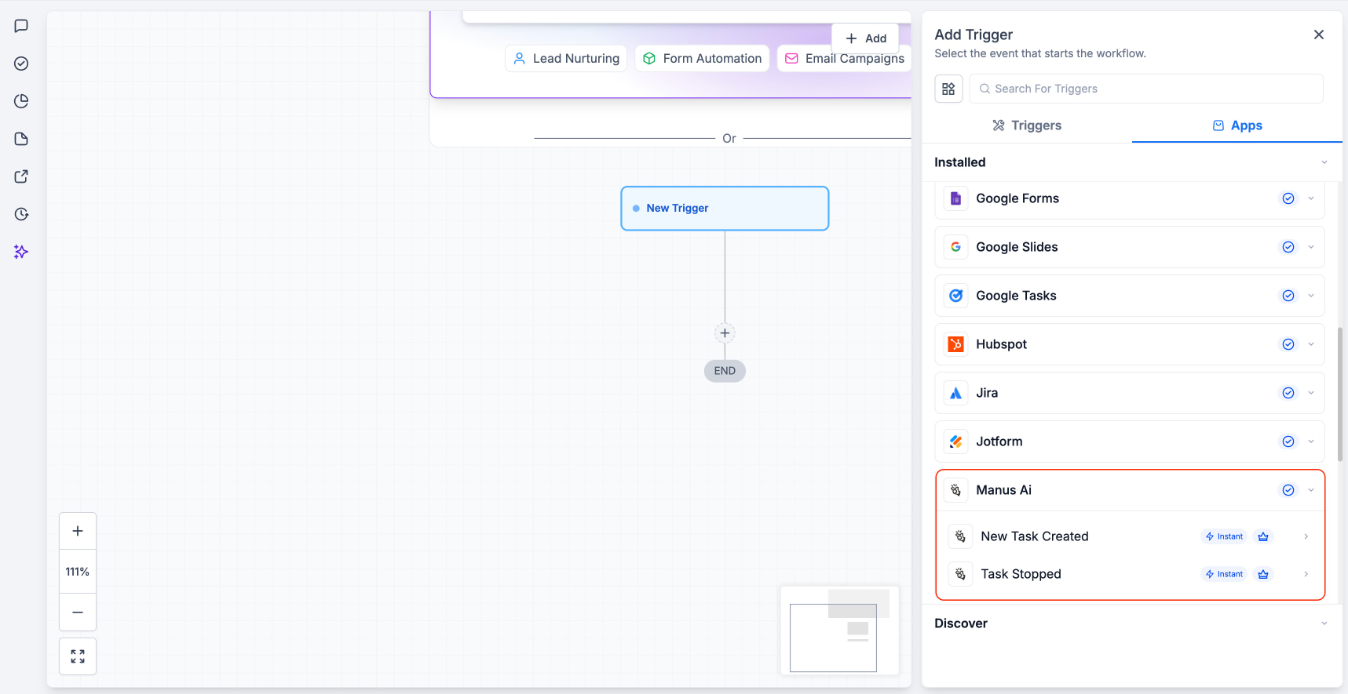
Important Notes:
Triggers fire only when a task is created via a workflow action
Tasks created directly inside the Manus app will not trigger workflow
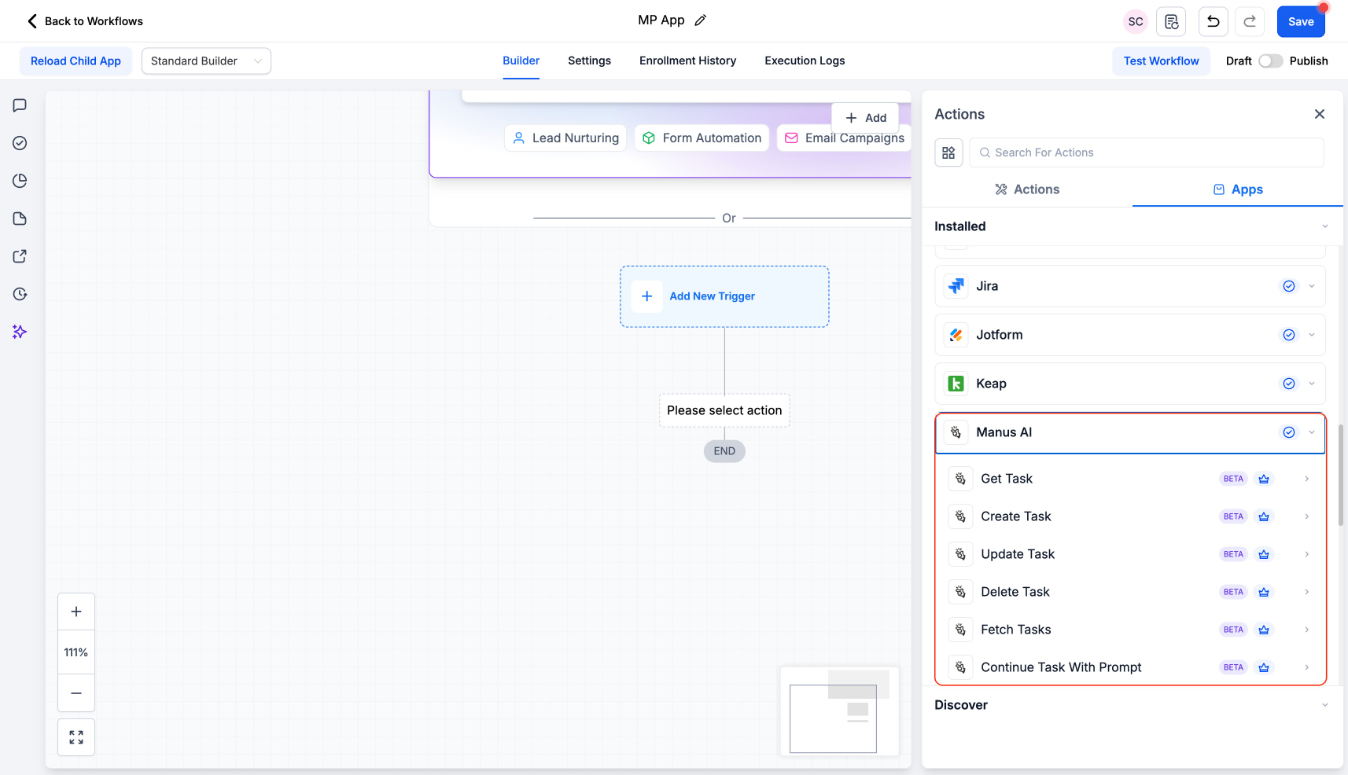
Actions (Platform→ Manus)
Manage Manus tasks directly inside workflows:
- Create Task– Create a new task in Manus
- Get Task– Retrieve details of a specific task
- Update Task– Modify task metadata or parameters
- Fetch Tasks– Retrieve a list of tasks
- Delete Task– Remove a task
- Continue a Task with a Prompt– Add a follow-up prompt to an existing task
How to Connect
From Workflow Builder
- Go to Automation → Workflows
- Add a Manus trigger or action
- Click Connect Now
- Authenticate using your Manus API key
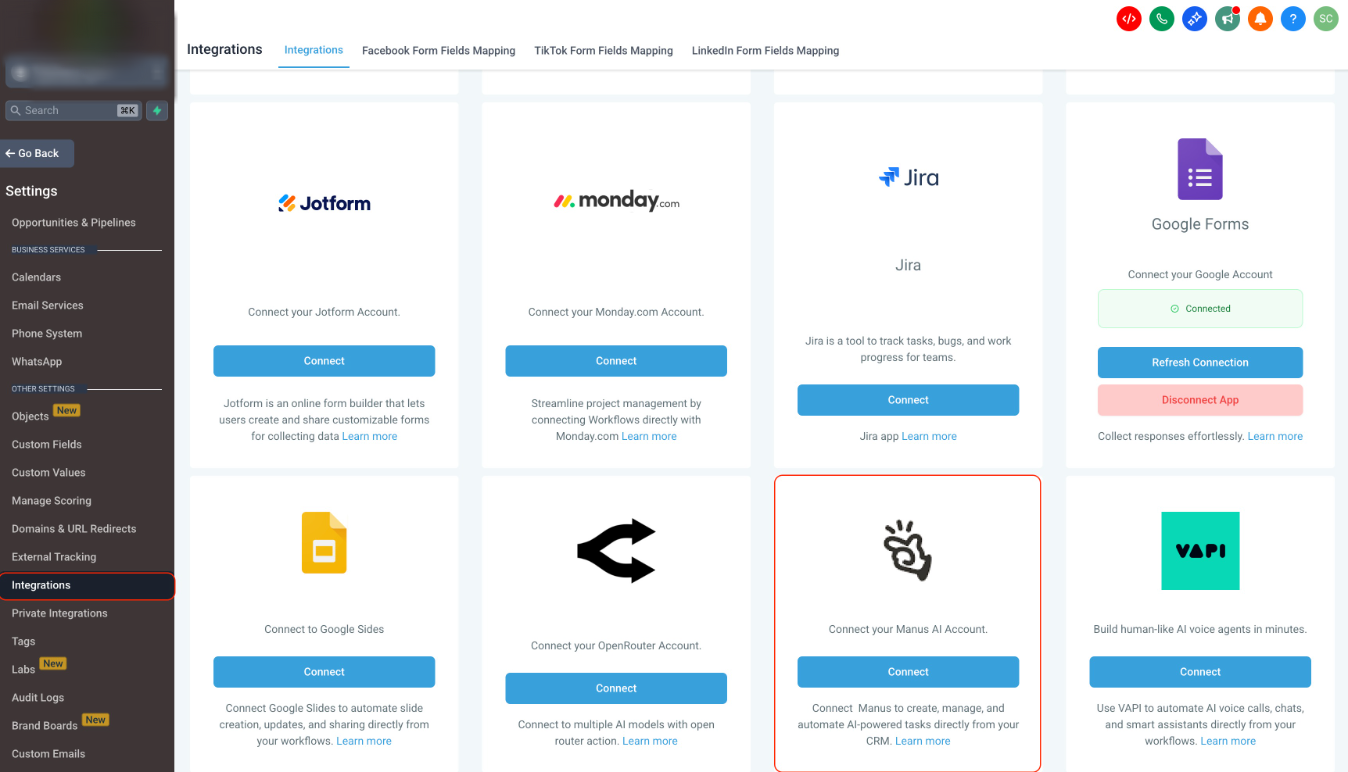
From Integrations Page
- Go to Settings → Integrations
- Select Manus
- Click Connect
- Enter your API key
Getting Your API Key
- Navigate to Manus API Settings
- Click Create New
- Copy the generated key
- Paste it into the platform when prompted
Best Practice
Store the Task ID returned from “Create Task” in a custom field.
You’ll need it to:
- Get Task
- Continue Task
- Update Task
- Delete Task
This enables structured, multi-step AI workflows.
Notes
- Triggers poll every 5 minutes
- Only tasks created via workflows trigger events
- Full AI outputs and lifecycle history are available in Manus
- Manus actions and triggers are premium workflow steps
- AI usage is billed by Manus separately
- Task limits depend on your Manus subscription
Frequently Asked Questions
Where can I view the full output of a Manus task?
Full task details, prompt history, and lifecycle status are available in the Manus dashboard. Platform confirms task initiation and returns the Task ID
How do I retrieve task output inside the platform?
Use the Get Task action and reference the stored Task ID
Why might a task fail?
Common reasons include:
- Integration disconnected
- Invalid Task ID
- Task already stopped
- Missing required prompt input
- API authorization failure
Check Automation → Workflows → Execution Logs for details
Was this article helpful?
That’s Great!
Thank you for your feedback
Sorry! We couldn't be helpful
Thank you for your feedback
Feedback sent
We appreciate your effort and will try to fix the article